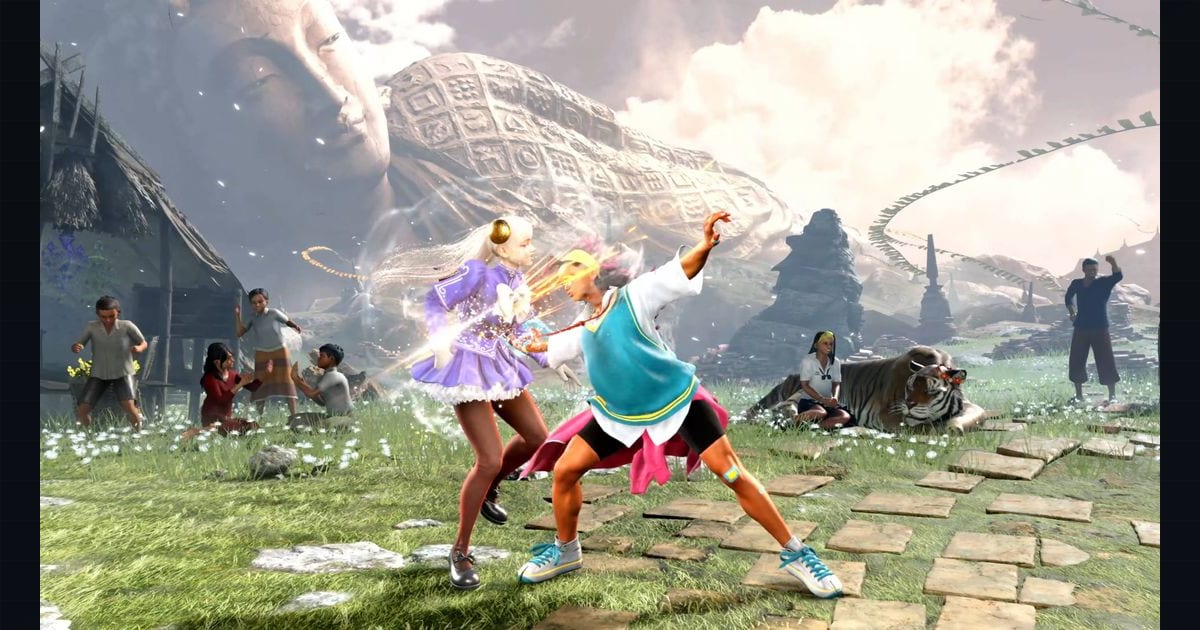
Online play in Street Fighter 6 lives or dies on one number you rarely see: the difference between the frame your input is read and the frame the move actually starts. Capcom shipped SF6 with rollback netcode and an in-training frame meter that exposes the underlying math. This guide covers how to read that meter, how SF6’s netcode handles delay automatically, what you can actually tune, and how to confirm your rig is tournament-legal.
What it covers: Reading SF6’s training frame meter, how the netcode auto-handles delay, and rig tuning for tournament-legal latency. Why it matters: One hidden number — input-read versus move-start — decides whether your punishes actually work online. Who should pick this: Online grinders and tournament entrants.
Why frames are the only unit that matters
SF6 runs at a fixed 60 FPSframerate. How many images (frames) the game shows per second; higher = smoother motion. 60 fps is a common target.. One in-game frame equals 16.67 ms of real time. Every action is measured in these discrete ticks — there is no sub-frame resolution a player can exploit. A move with 4 frames of startup cannot connect on frame 3 no matter how clean your input is; it can only begin hitting on frame 4 at the earliest.
That fixed tick is what makes frame data a complete combat language. Three properties define any attack:
- Startup — frames before the first active frame. Lower is faster; a 4-frame startup is the practical “interrupt” speed for most pressure situations.
- Active — frames where the move’s hitbox can collide with the opponent’s hurtbox.
- Recovery — frames after the last active frame before you return to neutral.
The number you actually play around is frame advantage — the delta between when you recover and when the opponent recovers from hitstun or blockstun. A move that is +2 on block means you act two frames before the blocker. A move that is −4 on block leaves you vulnerable for four frames, and in SF6 a 4-frame gap is squarely punishable by most medium attacks and many supers.
Enabling and reading the in-game frame meter
SF6’s training mode ships a visual frame meter that renders the data in real time. To turn it on:
- Enter Training Mode and pause.
- Open Training Settings → Display Settings.
- Open Screen Display Settings and enable Frame Meter (and Attack Data, which prints hit/block advantage on screen).
With the meter on, a colored bar graph tracks both characters frame-by-frame. The standard color coding:
| Bar state | Meaning |
|---|---|
| Green (bright) | Startup frames (Counter State) — before the hitbox is live |
| Red | Active frames — hitbox live (Hitbox Appearance Period) |
| Blue | Recovery frames (Punish Counter State) |
| Yellow / lighter | Hitstun and blockstun (Post-Damage/Block Recovery Period) |
| White gap | Both characters actionable — neutral |
The critical read is the gap between stun end and recovery end. If your recovery bar empties before the opponent’s stun bar, you are plus. If the opponent’s stun clears first, you are minus and punishable. Watching this against a dummy set to block-then-reversal is the fastest way to confirm whether a string is actually a real blockstring or has a gap a Drive Impact can slip through.
Practical meter drills
- Punish calibration: Record the dummy doing a known minus move (e.g., a heavy blocked sweep). Replay it, hold block, and test which of your moves connects in the punish window. The meter confirms whether you were late or the move was simply too slow.
- Tick-throw timing: Verify your throw attempts land on the exact frame blockstun ends — a frame early and you get thrown out of startup, a frame late and the opponent can jump.
- Drive Rush cancel windows: The meter shows exactly where a Drive Rush cancel extends advantage, which is the basis for most modern SF6 pressure routes.
Input delay: what SF6 actually lets you tune
Here is the honest part most “tuning guides” skip: SF6 does not expose a manual rollback input-delay slider to the player the way some anime fighters do. The rollback netcode auto-tunes delay based on the measured round-trip time to your opponent. Your job is not to dial in a number — it is to give the netcode the cleanest possible signal so it can run the lowest delay it can get away with.
What the rollback system does, roughly:
- It simulates both clients at 60 FPS and predicts remote inputs.
- When a prediction is wrong, it rolls back the simulation to the point of divergence and re-simulates forward.
- Higher ping forces more speculative prediction and/or a higher base delay to hide the rollback. Lower ping lets the system stay close to offline timing.
So “setting the correct delay” in SF6 means setting up your connection so the auto-tuner runs near zero — not turning a knob.
Connection settings that actually matter
- Use a wired Ethernet connection. This is the single highest-leverage setting. Wi-Fi jitter, not raw ping, is what forces rollback to spike delay. SF6 displays a Wi-Fi icon next to Wi-Fi players in matchmaking — many ranked players decline or dodge it for exactly this reason.
- Close bandwidth-heavy background apps. Downloads, cloud sync, and streaming uploads steal packet-scheduling headroom and add jitter even on a fast link.
- Check the in-match connection bars. SF6 shows a signal-strength indicator per opponent. Five bars roughly corresponds to low-ping, stable links where rollback runs near offline. Below three, you should expect visible delay and rollback artifacts.
- Matchmake by region. Pick the region closest to you geographically. Cross-region play works, but transcontinental matches add 100+ ms of unavoidable physics delay that no netcode fully hides.
Total input latency vs. network delay
A common mistake is conflating netcode delay with total input lag. They stack. Your total latency from button press to on-screen response is roughly:
Total = controller_poll + engine_input_lag + display_lag + netcode_delayOnly the last term is the netcode’s contribution. The first three are local and identical online and offline. Tournament legality is mostly about keeping the local stack honest so online practice transfers to an offline bracket.
| Component | Typical contribution | Tuning lever |
|---|---|---|
| Controller poll | ~1 frame (wired) | Use wired / low-latency pad or fight stick |
| Engine input lag | Platform-dependent | Capcom patches have reduced this; keep the game updated |
| Display lag | 1–10+ ms (game mode) | Enable TV/Game Mode; use a monitor with low input lag |
| Netcode delay | 0–several frames online | Wired connection, regional matchmaking |
Display settings to check
- Disable motion smoothing / interpolation on TVs. These add a full frame or more of latency.
- Use Game Mode if your display has one — it bypasses most image processing.
- On PC, test V-Sync on versus off. V-Sync can add a frame of render latency; if your system holds 60 FPS locked, disabling it (or using a frame-limit alternative) can shave input lag on PC.
- Resolution scaling: SF6’s RE Engine is well-optimized, but if you are dropping frames on PC, lower settings before lowering your frame target — a stable 60 is non-negotiable, because dropped frames desync the rollback sim.
Verifying tournament-legal setup
Most offline tournaments (Capcom Pro Tour qualifiers and community events) run on PS5 by default, with some PC brackets. The legal-legal checklist:
- Wired controllers only at the console. Wireless pads add polling variance; Capcom Pro Tour rules prohibit Wi-Fi and regulate controllers, and most events require a wired pad or stick.
- Disable background network features that can interrupt — notifications, auto-downloads, and cross-platform chat overlays.
- Match the target platform’s input feel. If you practice on PC and compete on PS5, expect a small base input-lag delta between the two — Capcom has adjusted input lag in patches, so the exact figure shifts over time. Top players warm up on the tournament hardware the day of to recalibrate timing.
- Confirm 60 FPS lock. Any frame pacing issue reads as a dropped input online and as a timing drift offline. Cap your frame rate and verify with an FPS counter in a long set.
- Run a connection stress test before ranked. A few casual matches against remote-region players will expose jitter the menu bar graph hides.
Cross-play and platform parity
SF6 supports full cross-play across PC, PS5, and Xbox Series X|S. That is a net positive for queue times, but it means the rollback netcode is constantly reconciling three different local-latency profiles. An Xbox player on a high-latency TV playing a PC player on a 1 ms monitor still has a playable match — but the PC player bears more rollback corrections to compensate for the opponent’s higher local stack. You cannot control the opponent’s setup; you can only optimize your own so the netcode has less work to do on your side.
Quick reference: the tuning checklist
- Frame Meter enabled in Training Mode, Attack Data on screen
- Wired Ethernet, no background downloads
- Region set to the closest server
- Display in Game Mode, motion smoothing off
- FPS locked at 60, no frame drops observed over a long set
- Wired controller or sanctioned low-latency wireless
- Tested on the tournament platform if competing offline
Reading the frame meter turns “that felt punishable” into “that was −6, my 4-frame medium hits.” Understanding that SF6’s delay is auto-tuned — not manually set — saves you hunting for a setting that does not exist and redirects that effort to the things that actually lower your effective latency: a wired link, a clean display path, and a locked 60 FPS. Get those right and the netcode runs as close to offline as your connection allows.
Sources & further reading
- Street Fighter 6 official site — https://www.streetfighter.com/6/
- Capcom Pro Tour rules & platform standards — https://capcomprotour.com/
- Street Fighter 6 Wiki — frame data & training mode documentation — https://wiki.supercombo.gg/w/Street_Fighter_6
- EventHubs SF6 frame data resources — https://www.eventhubs.com/streetfighter6/
- Rollback netcode primer (GGPO/Gamma Slippage concepts) — https://www.gafferongames.com/post/state_synchronization/
- Display input lag database — https://displaylag.com/
Next read
- For the protocol underneath the meter, see Rollback Netcode and Fighting Game Latency in 2026.
- For the meter you spend while playing, see Street Fighter 6: Drive Rush, Drive Impact, and Punish Frame Data.
- All our coverage lives on the Street Fighter 6 hub.